Access denied
Please download through the loader first.
Pulse Setup Guide
Follow this guide in order. Replace each image placeholder with the matching screenshot from your Google Doc.
Step 1: Download Application
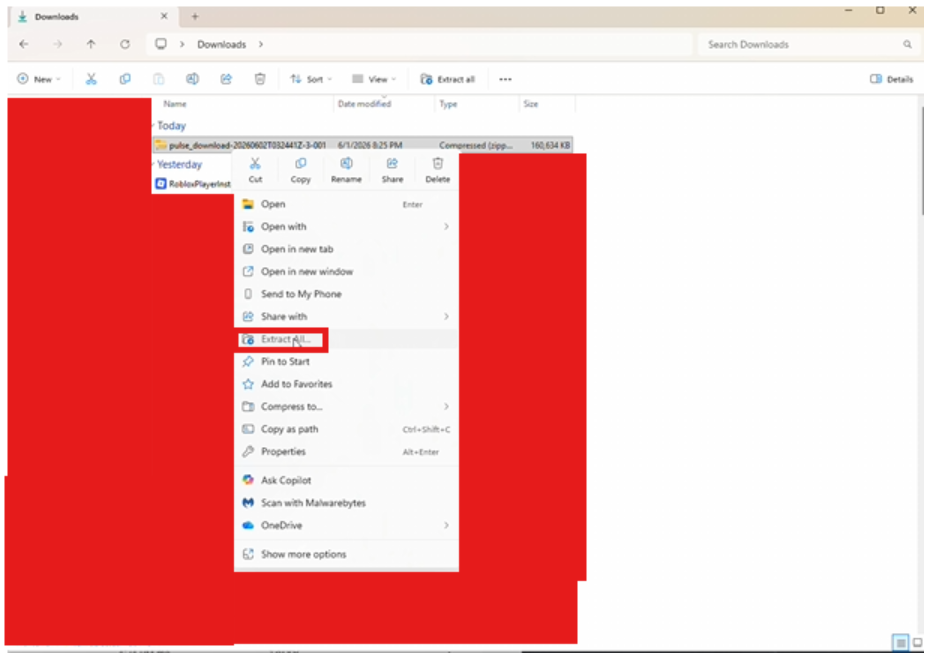
Once you do this, right click the zip file and select extract all.
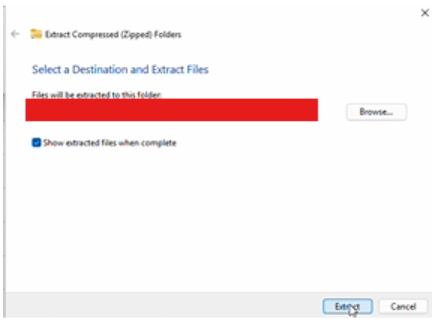
Then click Extract
Step 2: Open the Extracted File
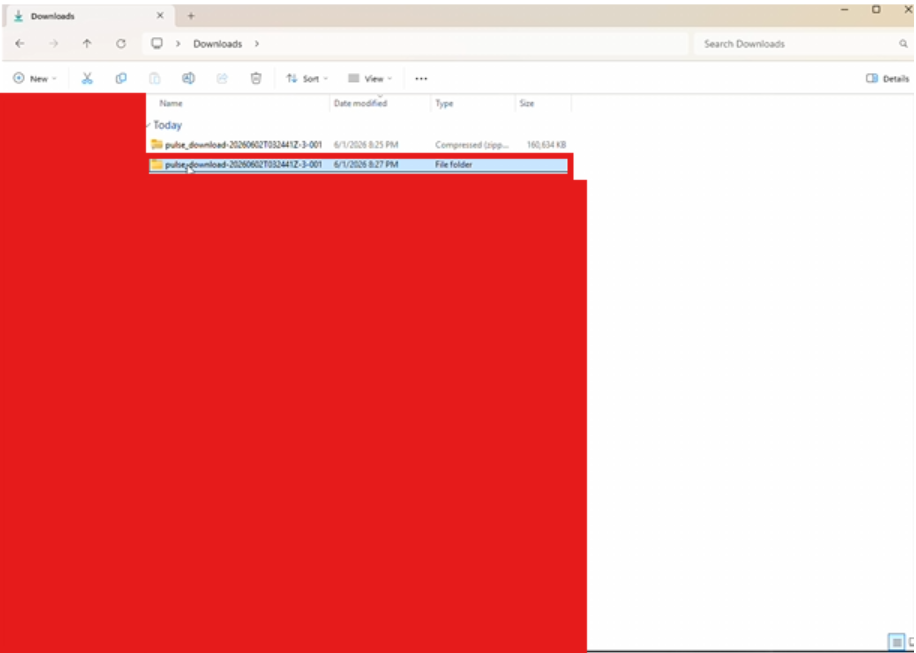
Then go back into downloads once it finished extracted. Important: wait for it to finish. And click on the extracted file. Make sure you do click the extracted file.
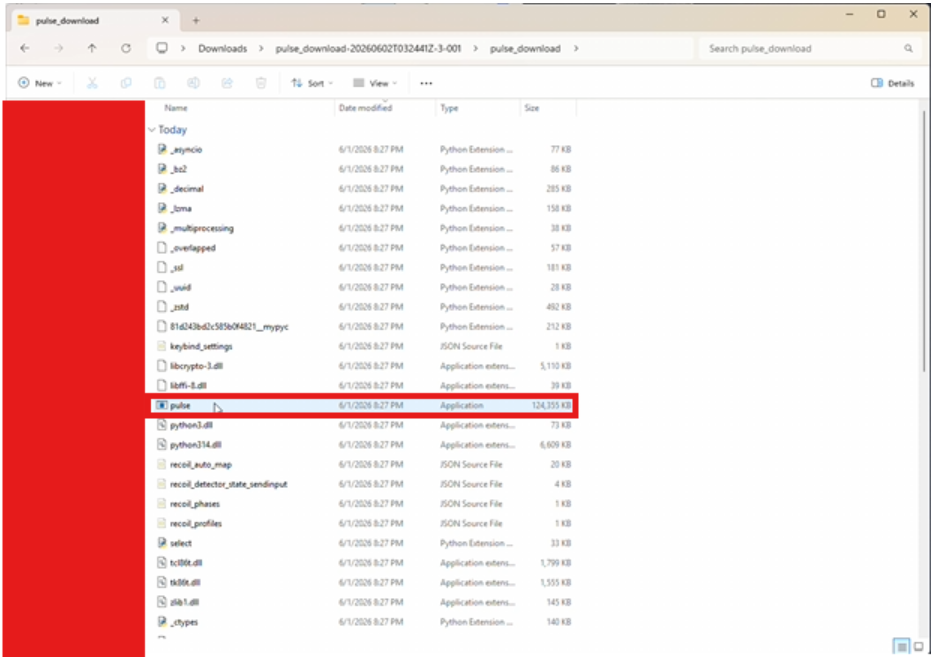
Double click Pulse
Double click Pulse and then you should be ready.
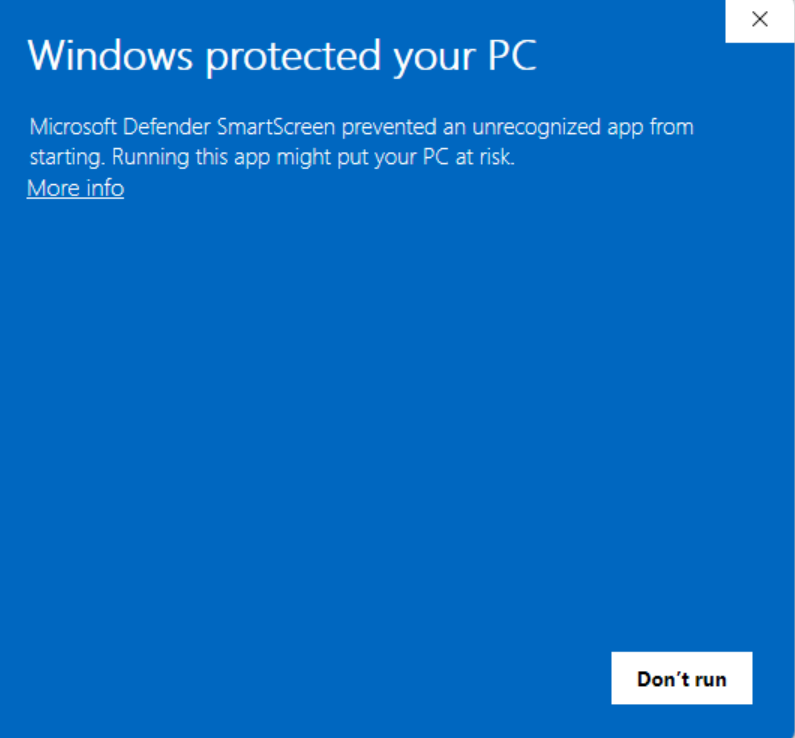
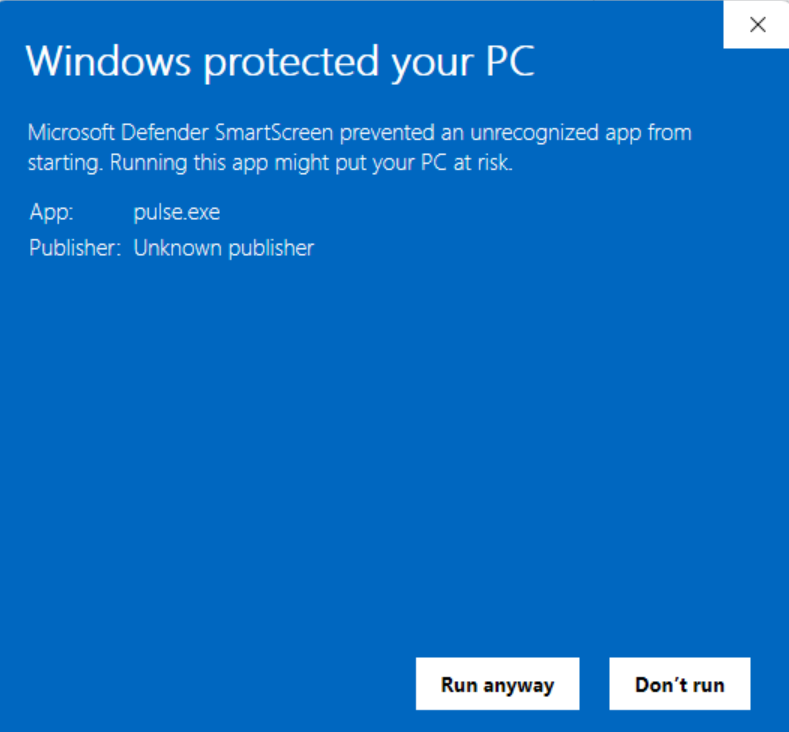
Step 3: Windows SmartScreen
Click More Info
Click Run Anyway
Step 4: Import Base Recoil Values
Open File Explorer, go to the recoil values zip you downloaded, right click it, click Extract All, and wait for it to finish. Then open the extracted folder, not the zipped folder.
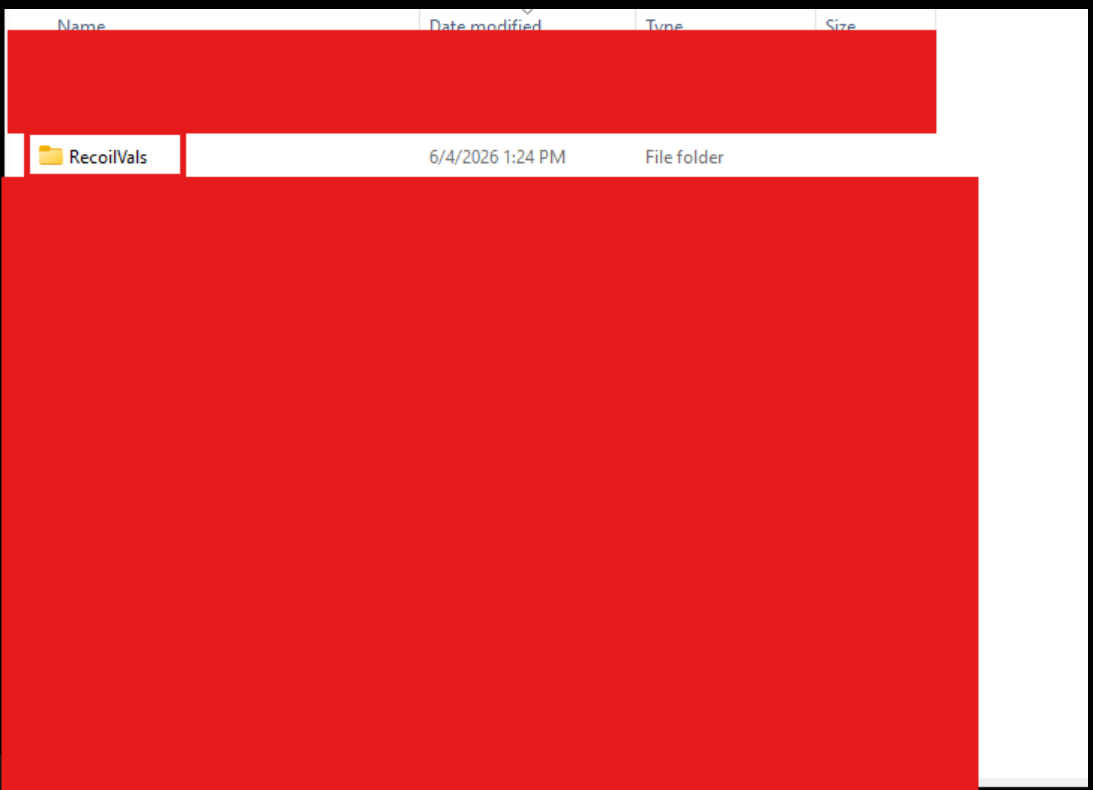
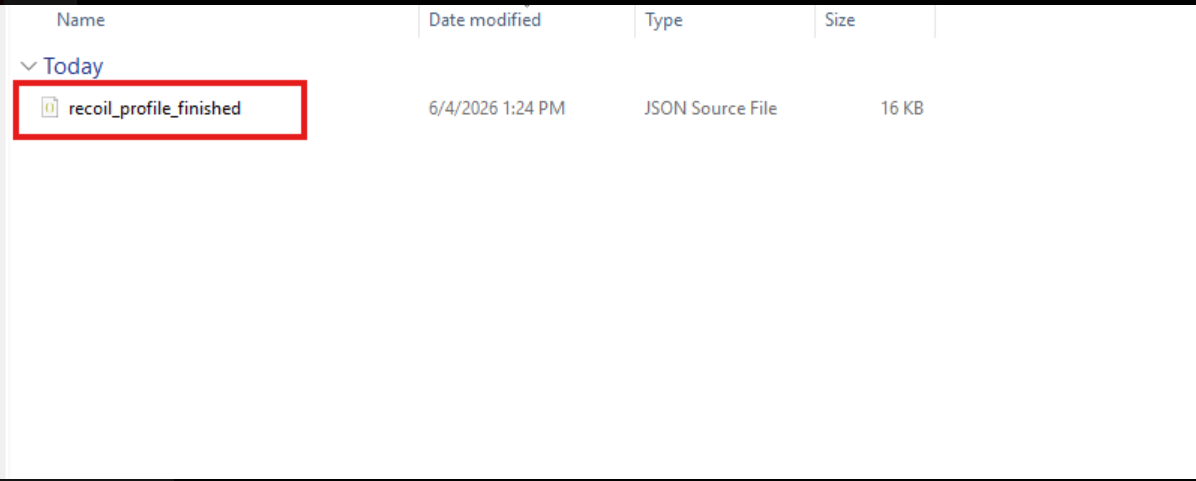
Inside the extracted folder, open Recoil Vals, then click the file named recoil_profile_finished.
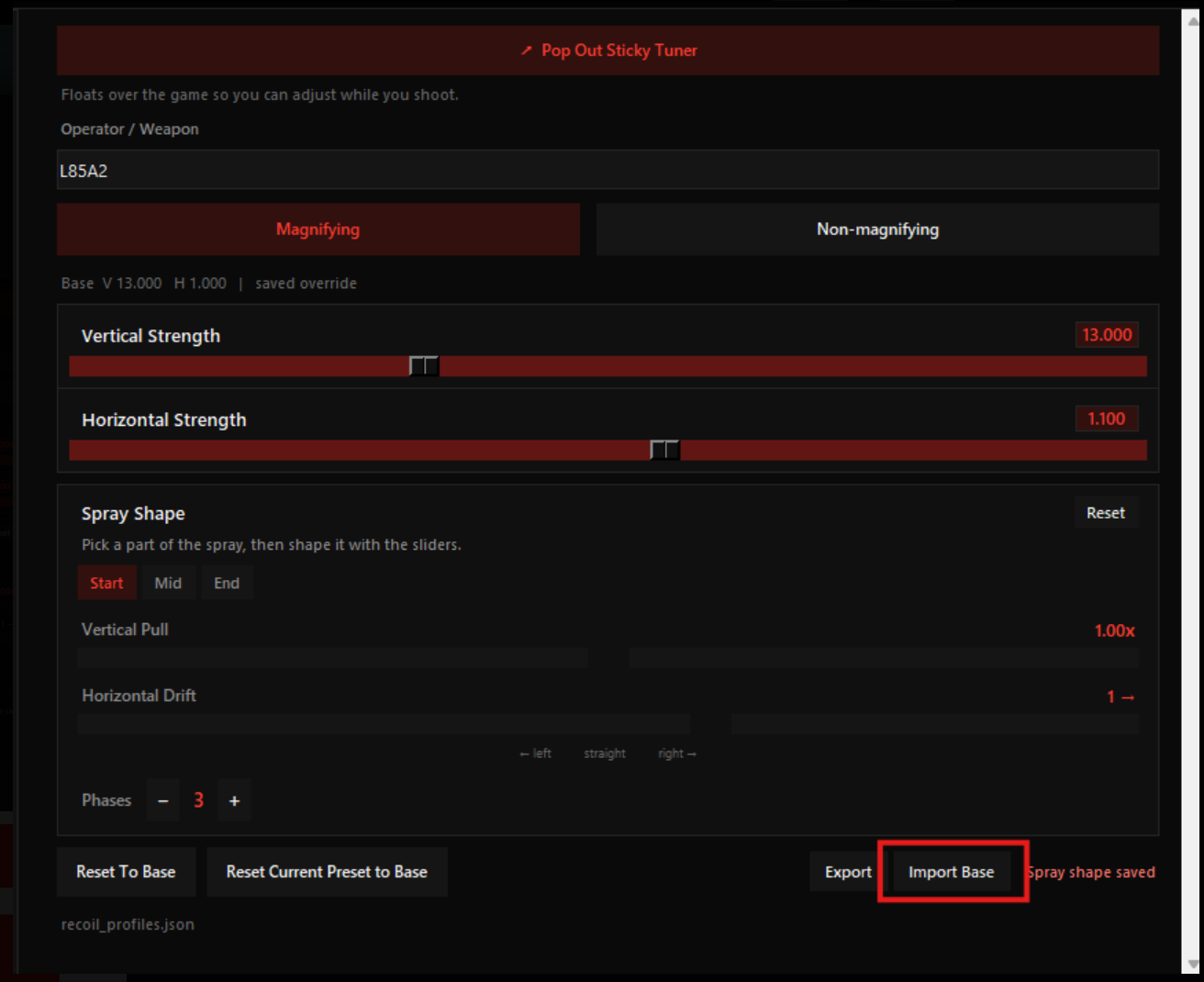
After Pulse opens and you have entered your license key, open the Pop Out Sticky Tuner and click Import Base.
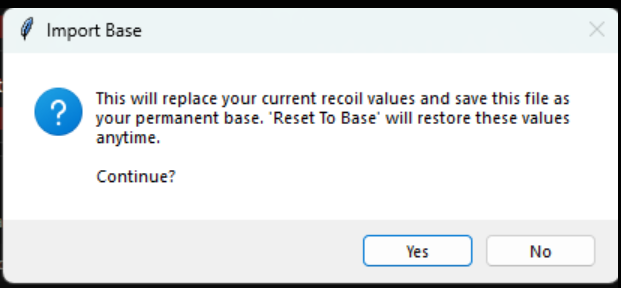
When the Import Base confirmation pops up, click Yes. This replaces your current recoil values and saves this file as your permanent base.
If Pulse Is Not Working
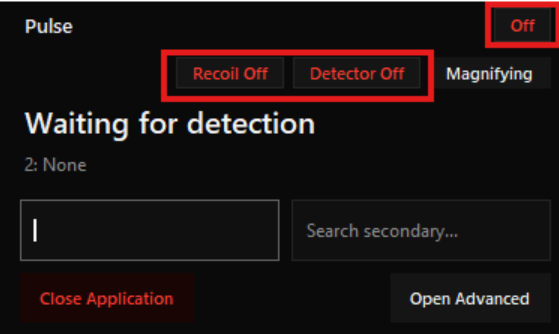
If Pulse says OFF on the top right and recoil is not turning on and detector is not turning on, that means you have two applications of Pulse open. Go to Task Manager, on the search bar on the top, search for Pulse, end task on all of them, and then rerun Pulse from the folder and it will work.
Sensitivities Tab
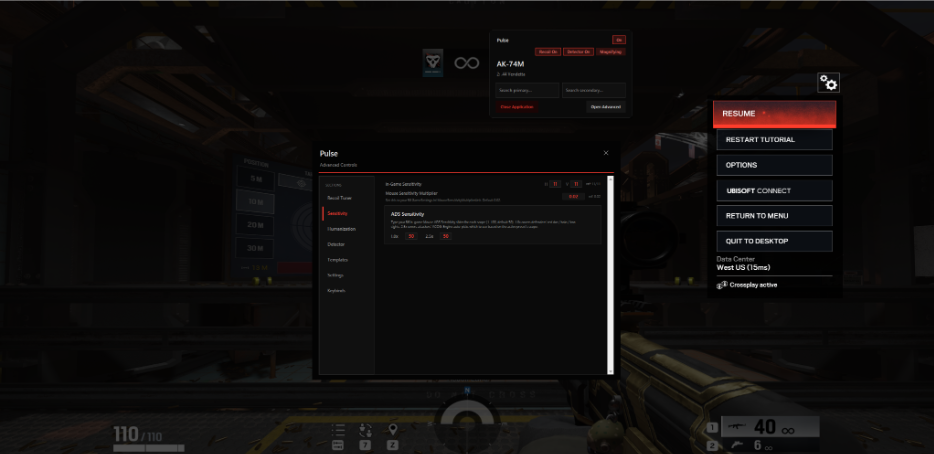
In the Pulse GUI, click Open Advanced. Head onto the sensitivities tab and then input all your sensitivities that you have in game.
- Horizontal and vertical: These are found in your settings > controls > horizontal / vertical sensitivity.
- Game Sensitivity Multiplier: This should be default if you never changed it, but it is found in your File Explorer > Documents > My Games > Siege > GameSettings.ini. Look through that to find mouse sensitivity multiplier.
- Mouse ADS sensitivity: Open settings in game, go to controls > mouse ADS sensitivities, remember your 1x and 2.5x and input it into here.
Detector Tab
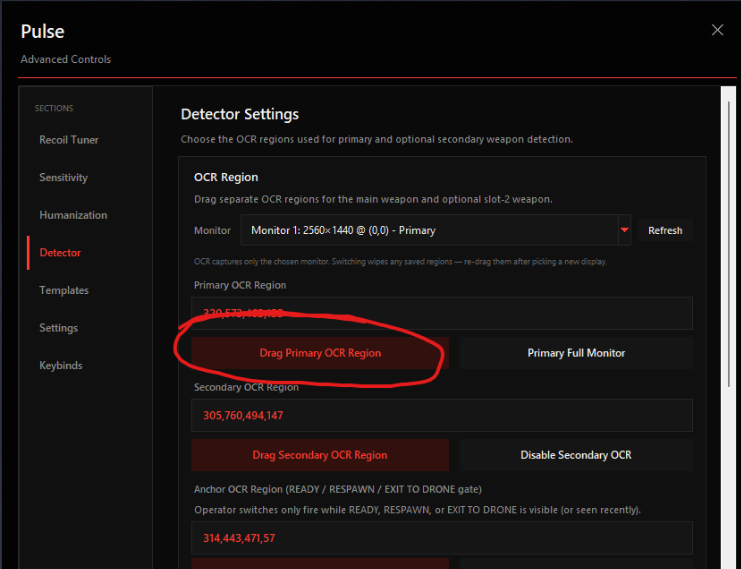
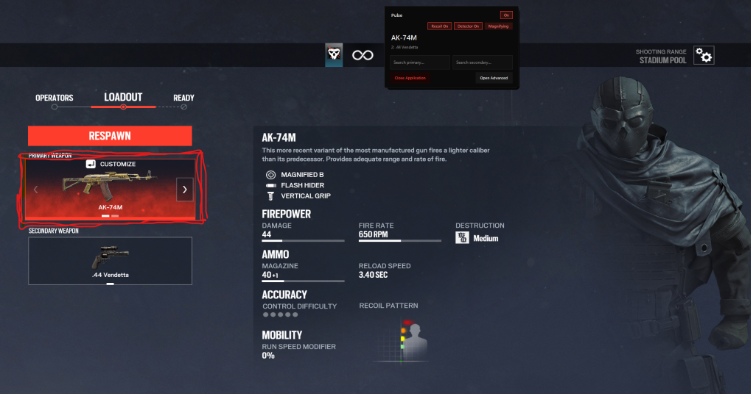
In the Pulse GUI, click Open Advanced. Head to the detectors tab. Select which monitor you are playing Siege on. Then click the red button that says Drag Primary OCR Region. Then it will open up a screenshot-like thing, and from there drag it over the first box of the primary gun like this:
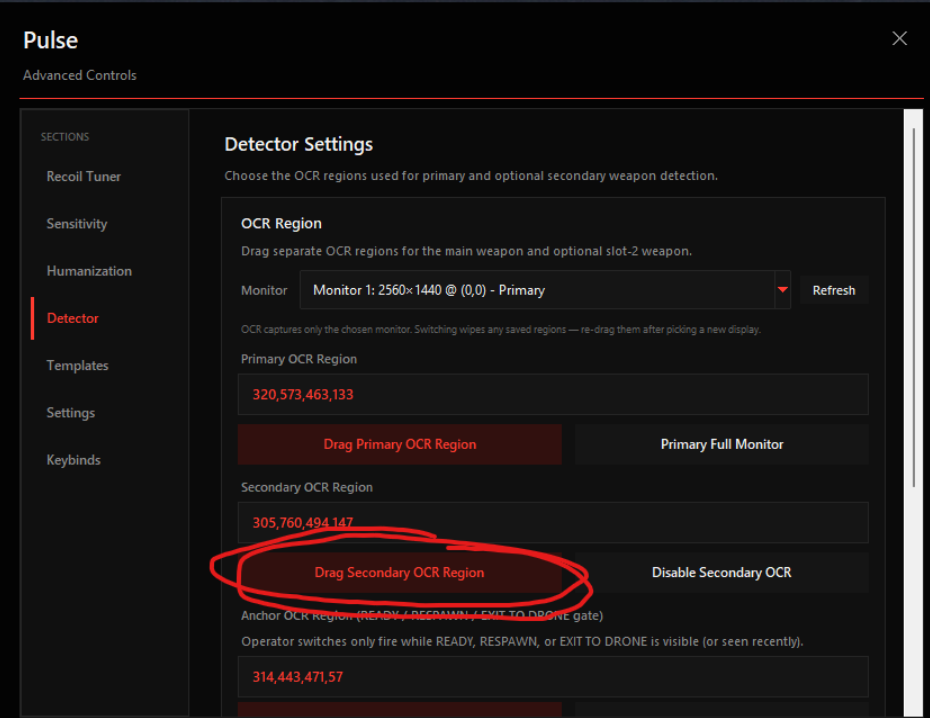
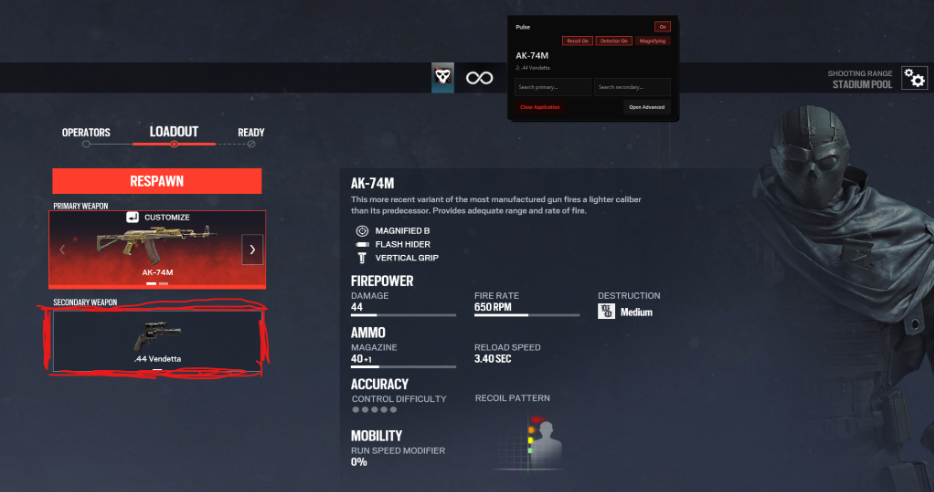
Then once you do that, click on the button that says Drag Secondary OCR Region. Then drag that over the box of the secondary gun.
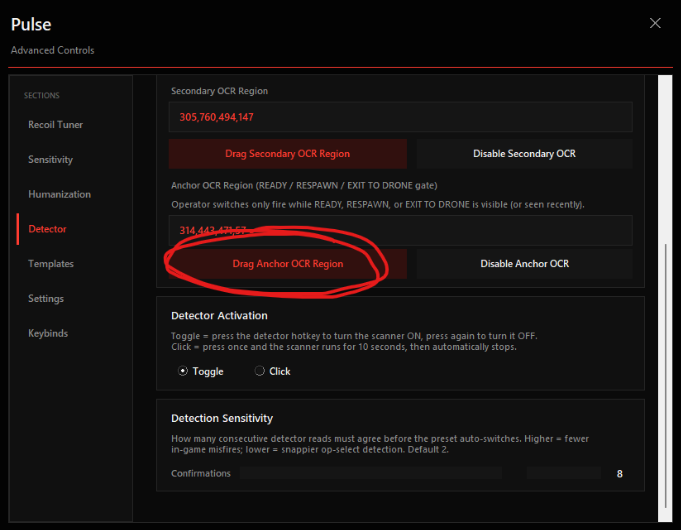
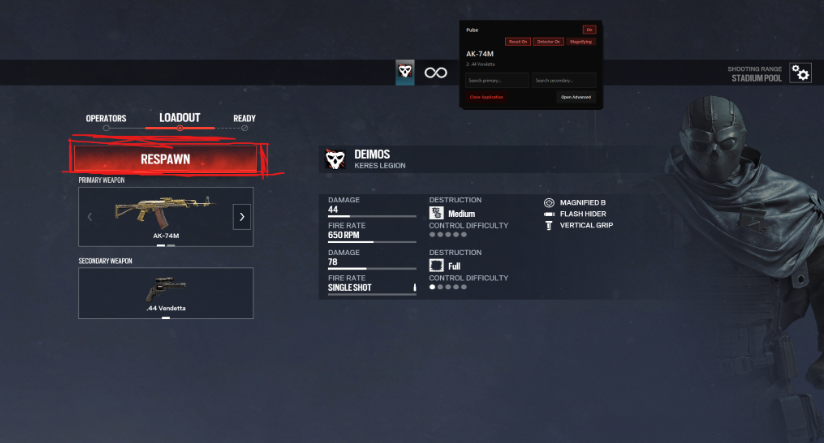
Then scroll down and click the button that says Drag Anchor OCR Region. With that, drag it over the box that says RESPAWN.
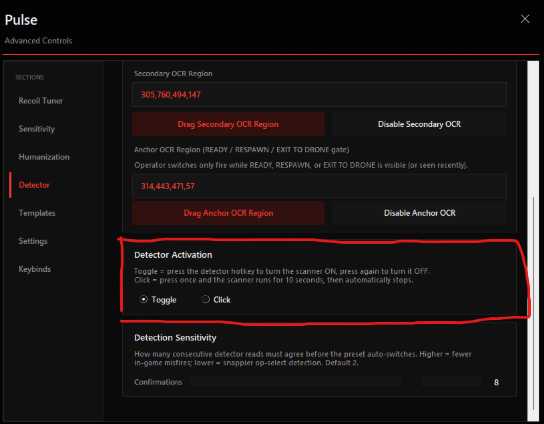
In detector tab, this is basically an option where you can click the button to turn on detector, it will detect and then turn off in like 10 seconds, and this is if your AI is getting mixed up in game and switching guns.
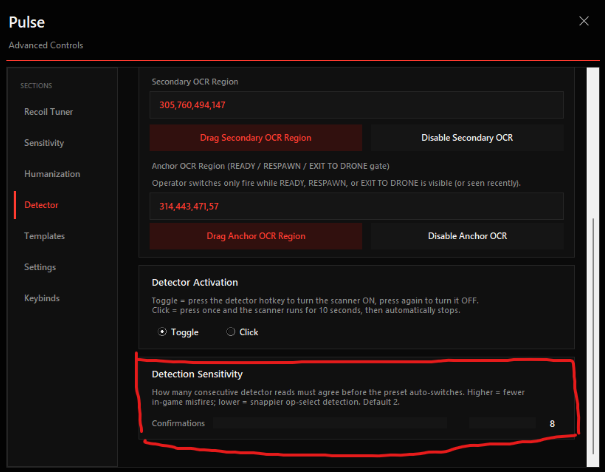
The detection sensitivity is basically, “how many times you want the AI to read that certain gun, before it switches it” and this is to avoid false positives, meaning it is less likely to switch to a random gun during game. Although this also means that it will be slower at detecting so dont do this if you have a slow computer.
Recoil Tuner Tab
Here, you can type your gun and search for which gun you want to use. Ignore the operator/weapon as that we forgot to remove.
- Magnifying vs non magnifying: Magnifying basically means ACOG and non magnifying means no ACOG. All defender guns should be adjusted with non magnifying. If you are using ACOG, which you should be on attackers, then adjust magnifying values and if you arent for some reason and want to keep the normal scope on attackers, then choose non magnifying.
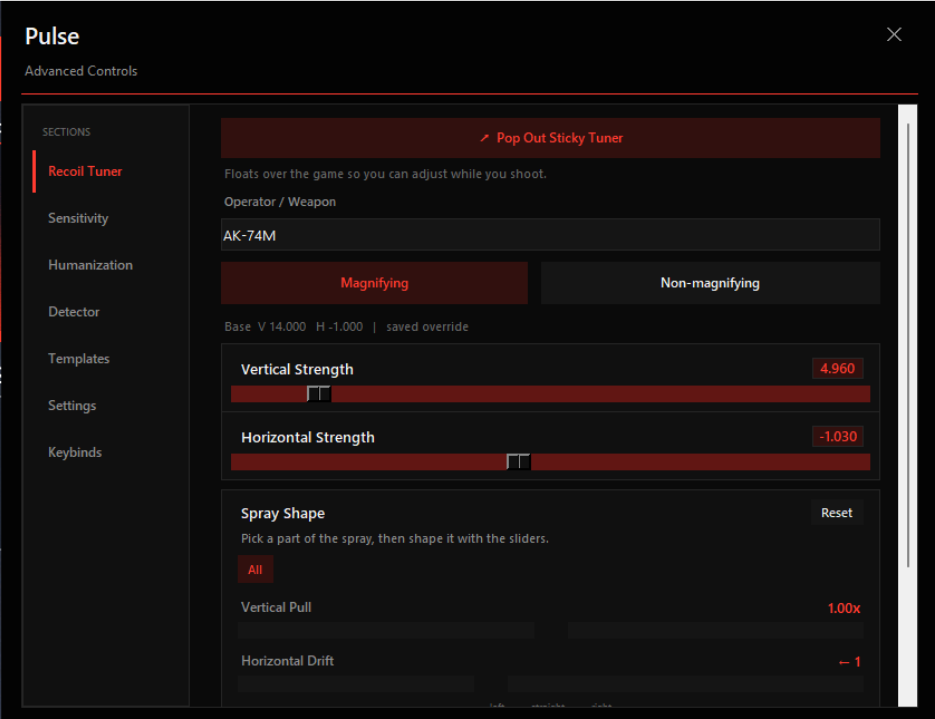
Pop Out Sticky Tuner
This makes it super easy to adjust guns as it will automatically detect what gun your on right now and switch to that preset.
How To Adjust
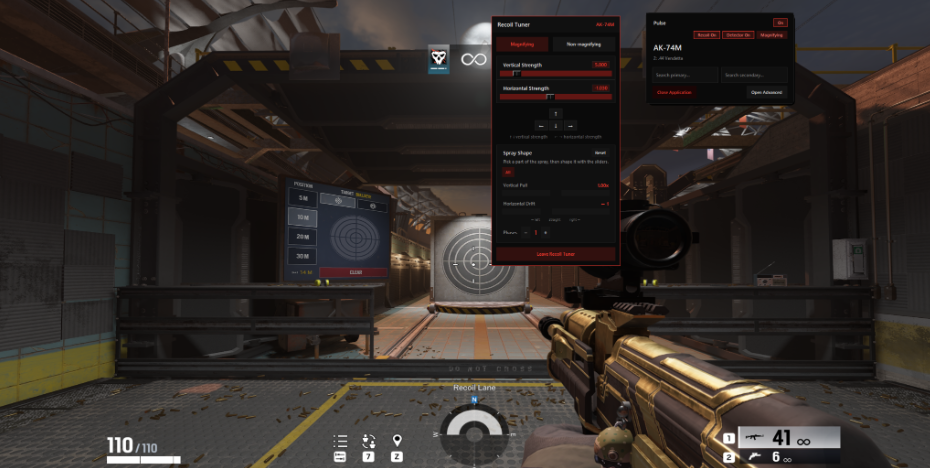
In game, while in shooting range and the pop up is there you are able to adjust values with arrow keys.
- How this works, shoot your gun. If the gun goes down too much, then use your down arrow key to decrease the vertical strength, this will pull the gun up.
- If the gun goes up too much, use the up arrow key to increase the vertical strength, this will add more control.
- If the gun moves to the left, use the right arrow key to pull the gun to the right more to even it out.
- If the gun moves to the right, then use the left arrow key to move it to the left.
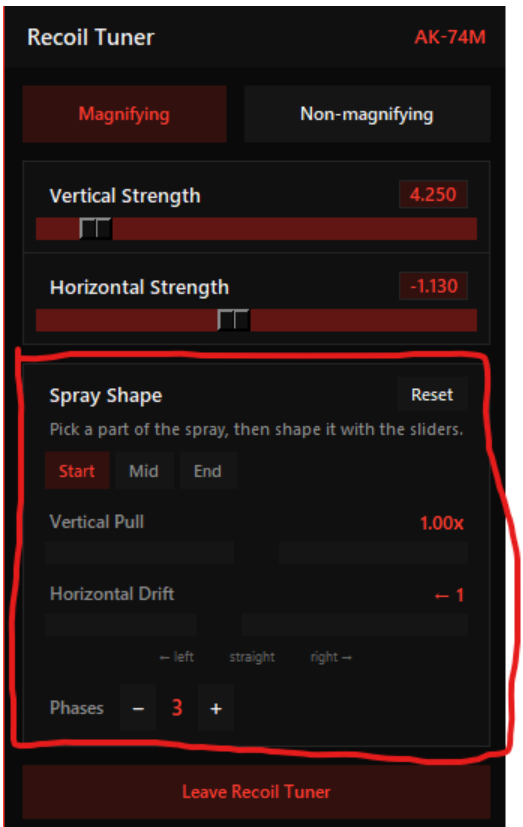
Spray Shape, What Is That?
This is basically phases of the guns that you want to edit. You can choose how many phases with the +/- buttons on the bottom and adjust each phase’s vertical pull and horizontal drift. During the certain phase, if you want the gun to go more down, then you increase vertical pull. If you want the gun to go more up, you decrease vertical pull. Horizontal drift works like the same logic as the horizontal strength above, move slider to the right if gun is moving to left and move slider to the left if gun is moving to the right.
Templates Tab
Lets say you have tried everything and a gun is not detecting like this:
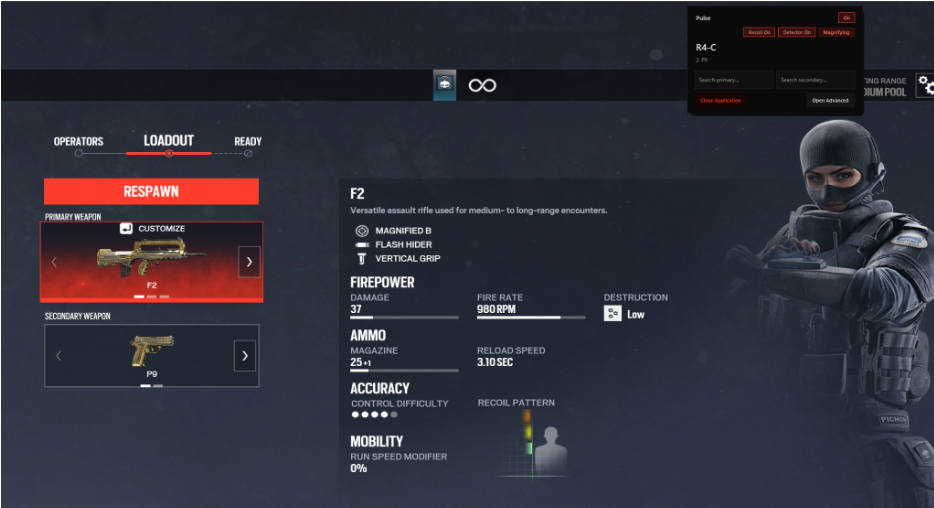
Then you head into Open Advanced on Pulse GUI, then you go into Templates, and in the search bar search for the gun that is not detecting. In this scenario its F2. Then click the capture template and a screenshot exactly like this, and recognize how I left some space too around the letters slightly.
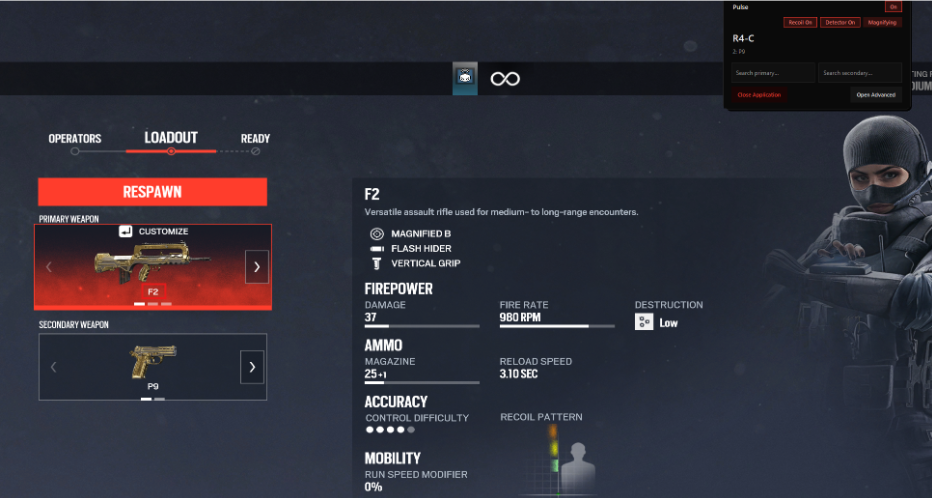
Then it should detect the gun. Again if it doesn't then contact us with a ticket in the support channel in our Discord and we will help you out.
Settings Tab
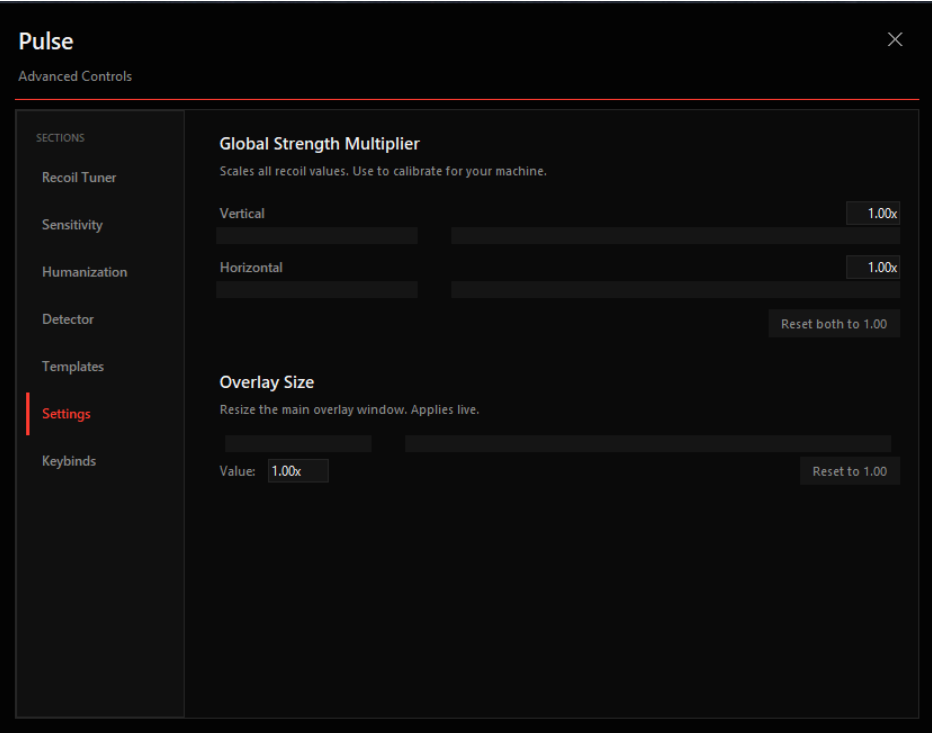
Global strength multipliers, vertical and horizontal. This is where if you are used to pulling down, you can decrease the vertical slider so it pulls down on the guns a lot less. You shouldn't really touch horizontally, I don't know why but you can mess with it. Also you can increase or decrease the overlay size of your main GUI, not the advanced GUI.
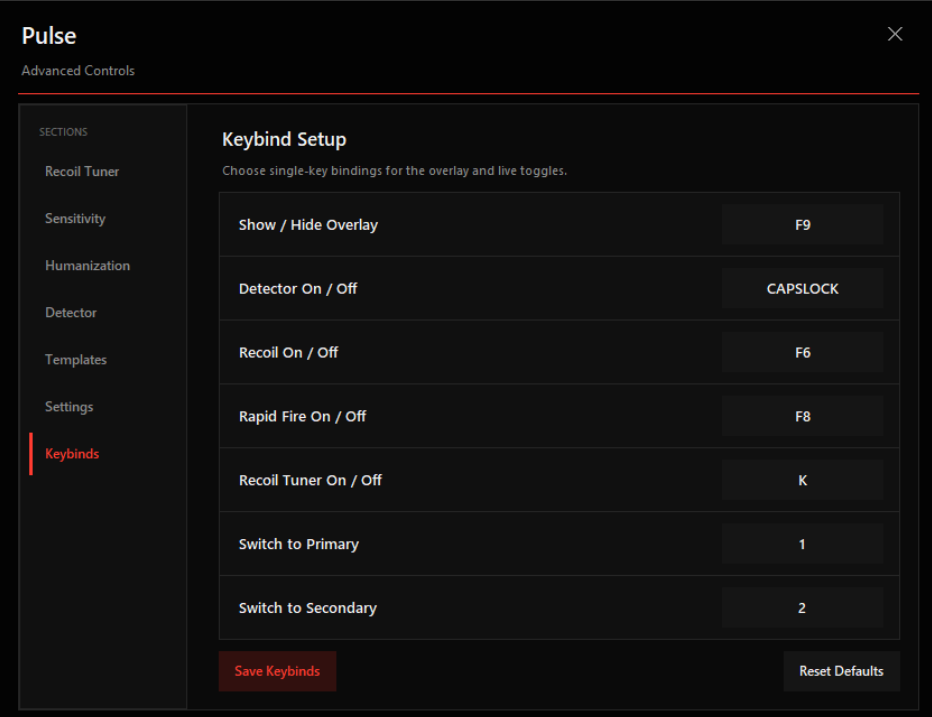
Keybinds Tab
These are kind of self explanatory.
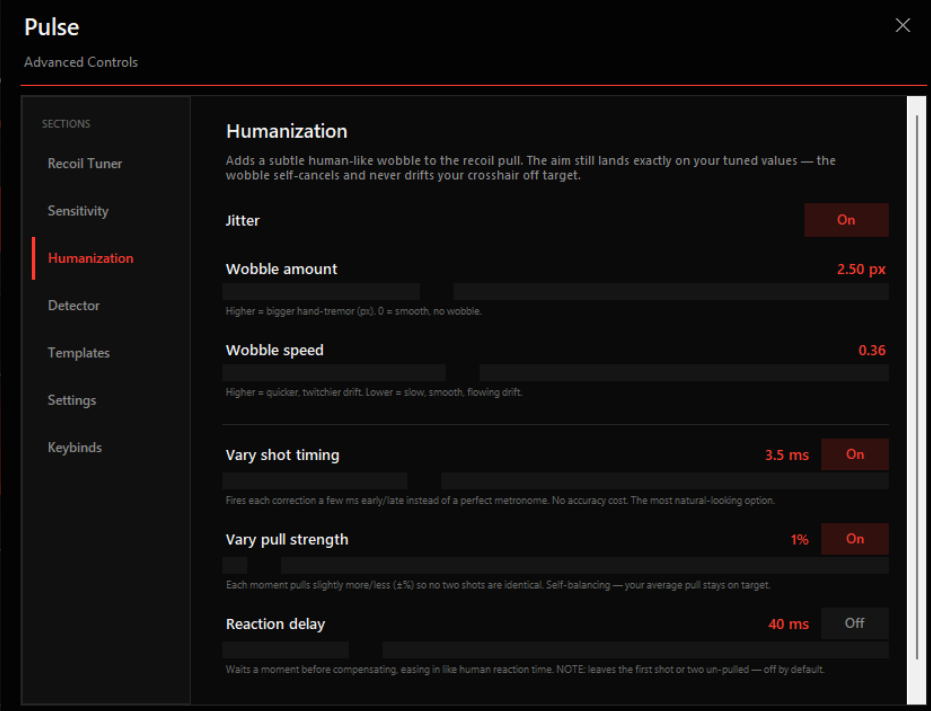
Humanization Tab
It explains you this under the sliders, just read those.
Still Need Help?
Join the Pulse Discord for setup assistance, troubleshooting, and support.
Join Discord